> ## Documentation Index
> Fetch the complete documentation index at: https://flexprice-mintlify-ae61e414.mintlify.site/llms.txt
> Use this file to discover all available pages before exploring further.
# Create subscription for a customer
> Once a customer is created, you can create a subscription for them by following these steps:
* Navigate to the **Customers Dashboard**.
* Click on the customer you want to create a subscription for. This will open the customer's details page.
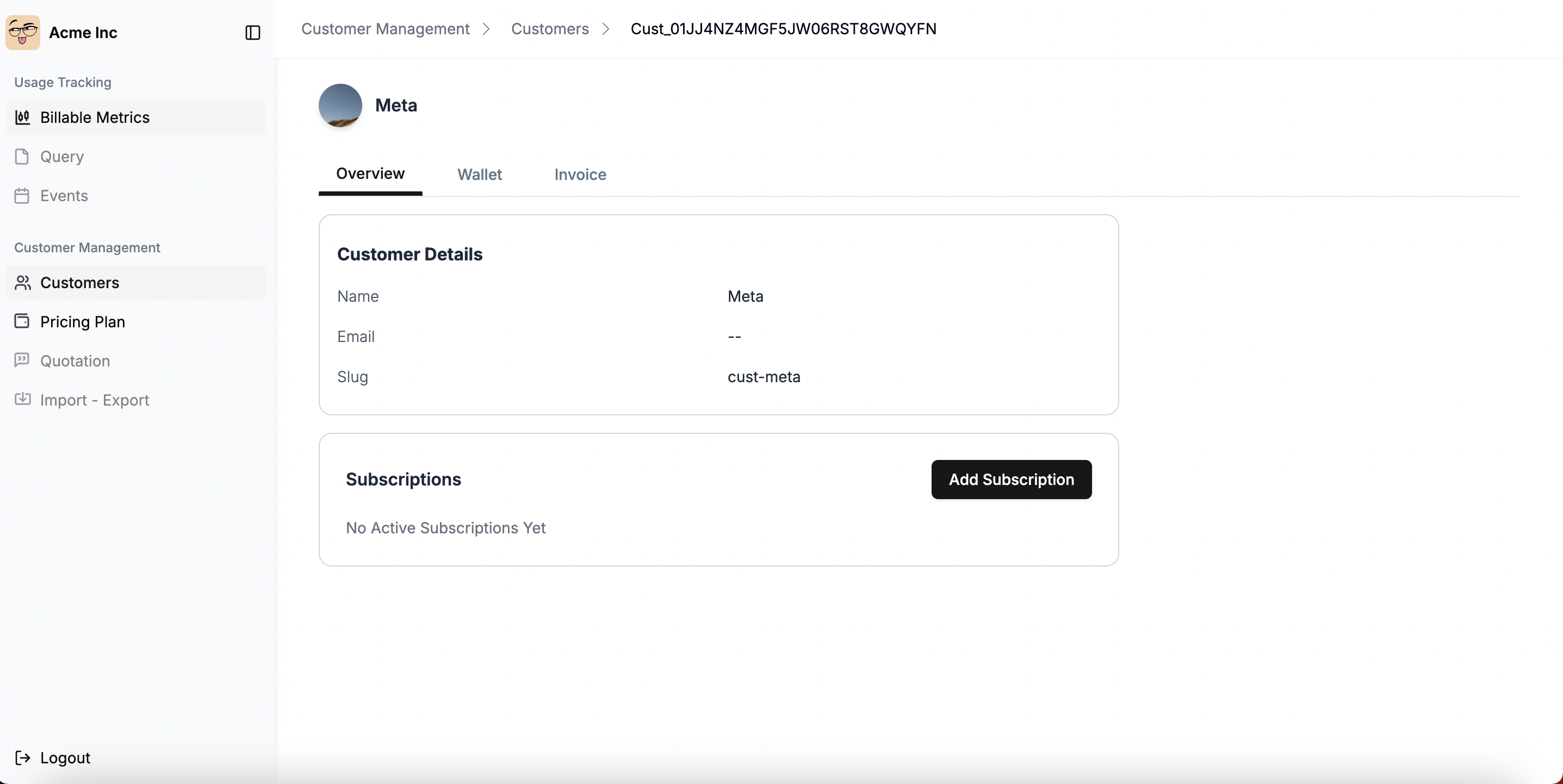 * On the customer details page, click the **Add Subscription** button.
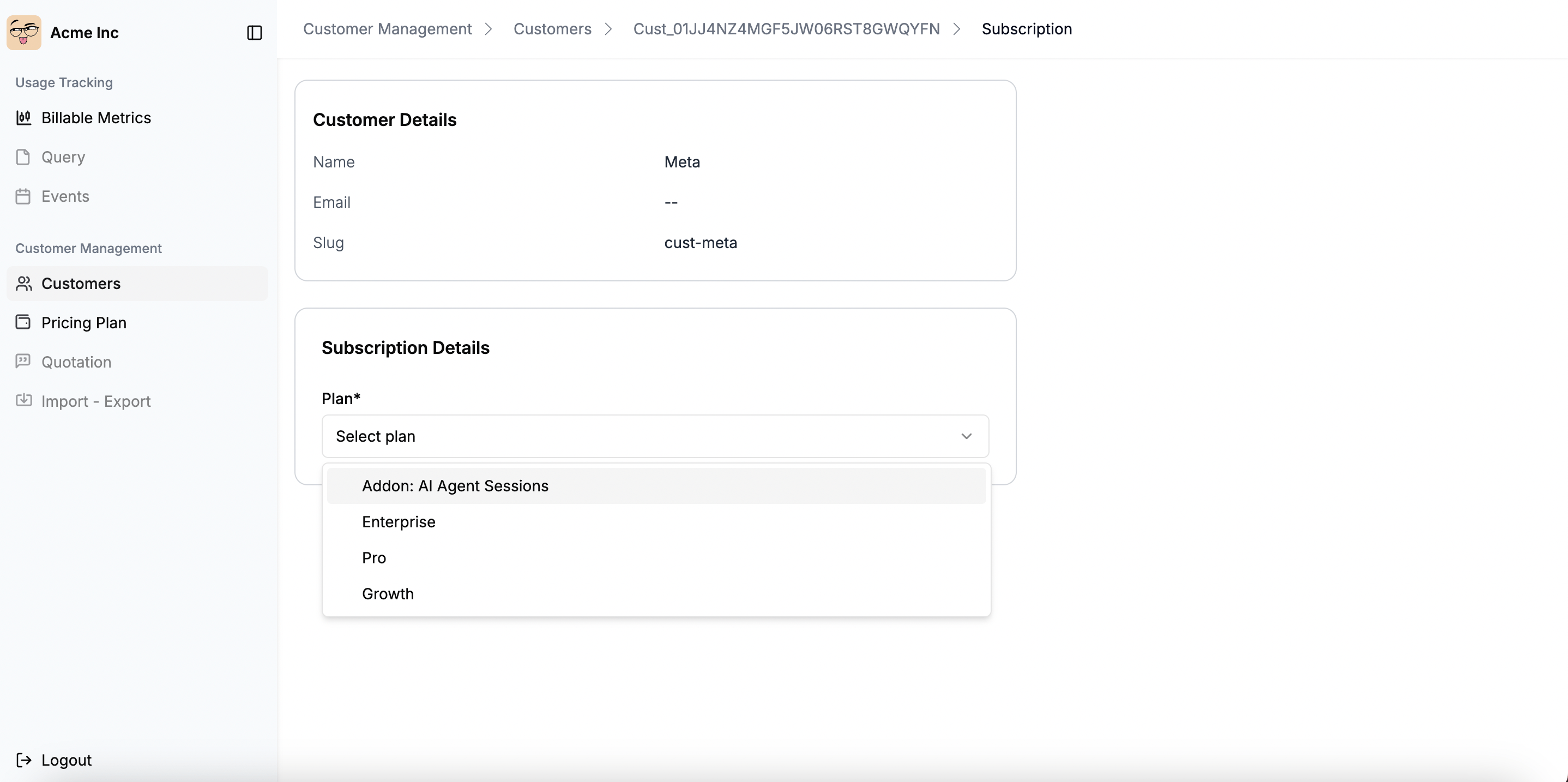
* Select a pricing plan from the dropdown menu. Only plans that have been created will be listed.
* On the customer details page, click the **Add Subscription** button.
* Select a pricing plan from the dropdown menu. Only plans that have been created will be listed.
 * Based on the selected plan, subscription preview along with breakdown of charges will appear on the right side of the screen. This includes all recurring charges and usage-based charges that you've created in the plan for the given billing period.
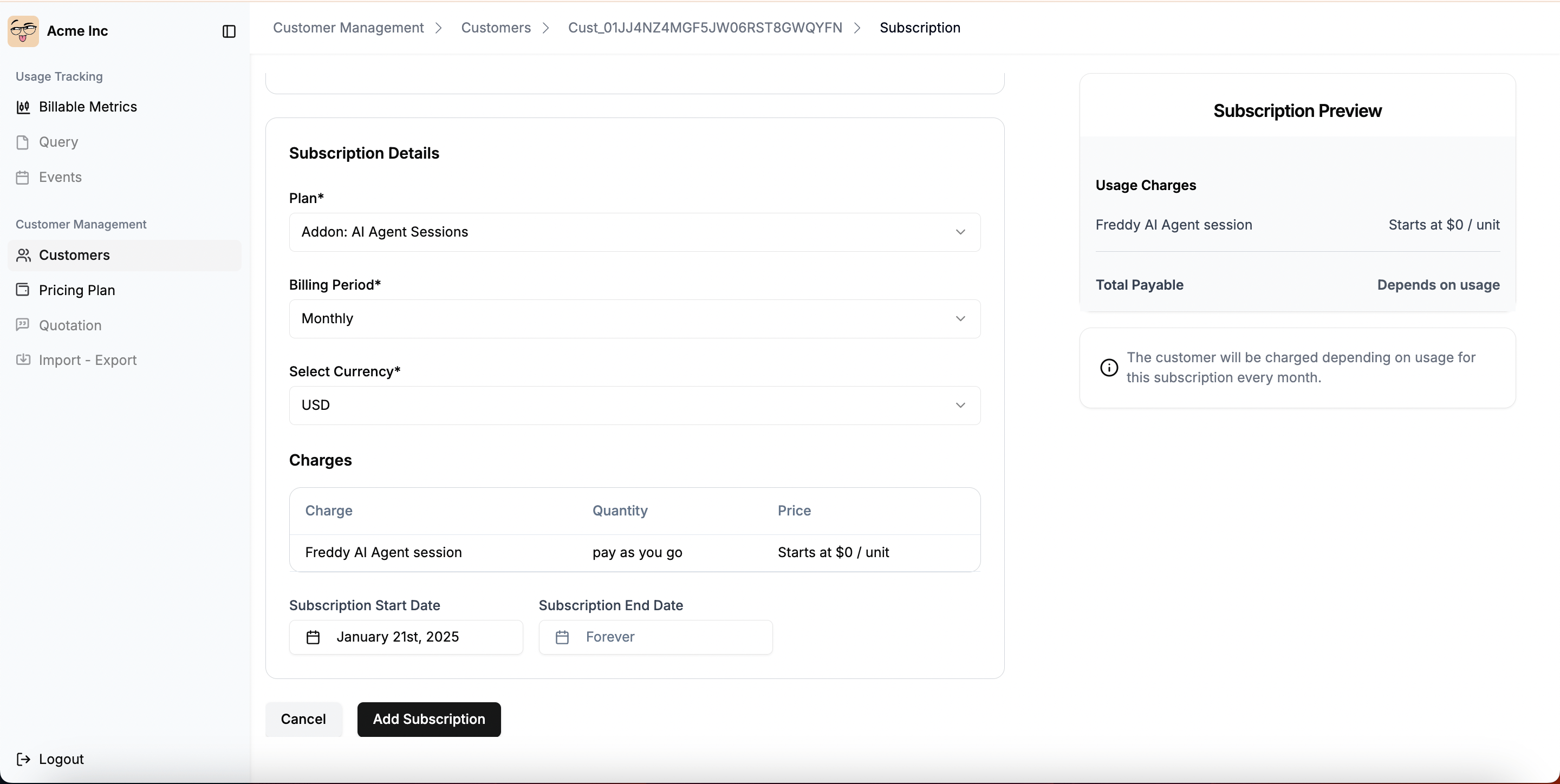 * Specify the **Subscription Start Date** thats marks as the beginning of the billing cycle.
* Define the **Subscription End Date** if required. By default, this is set to "Forever."
* **Optional: Configure Override Line Items** - If you need to customize pricing for this specific subscription, you can add override line items to modify amounts, quantities, billing models, or tier structures. See [Subscription Override Line Items](/docs/subscriptions/override-line-items) for detailed information.
* Once all details are entered, click **Add Subscription** to save.
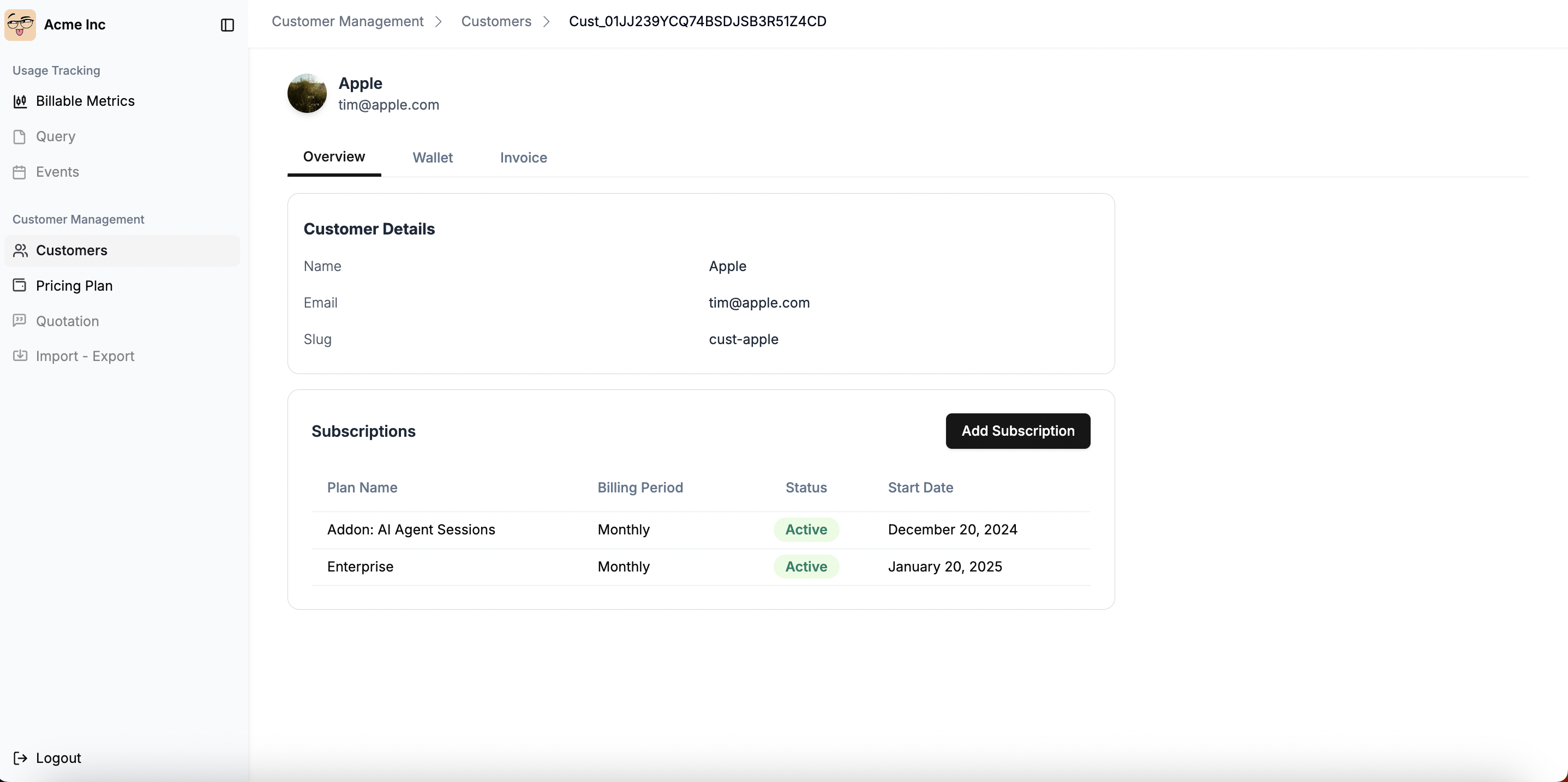
* The subscription will now appear under the customer's details with its status and billing information.
* Specify the **Subscription Start Date** thats marks as the beginning of the billing cycle.
* Define the **Subscription End Date** if required. By default, this is set to "Forever."
* **Optional: Configure Override Line Items** - If you need to customize pricing for this specific subscription, you can add override line items to modify amounts, quantities, billing models, or tier structures. See [Subscription Override Line Items](/docs/subscriptions/override-line-items) for detailed information.
* Once all details are entered, click **Add Subscription** to save.
* The subscription will now appear under the customer's details with its status and billing information.
 ### **Managing Multiple Subscriptions for a Customer**
* A single customer can have multiple active subscriptions.
* Each subscription operates independently based on its assigned billing period, charges, and start date.
* For example, a customer can have both a `Basic Plan` and an `Addon: AI Agent Sessions` subscription, each billed separately.
### **Customizing Subscription Pricing**
* **Override Line Items**: Customize pricing for specific subscriptions by overriding plan prices
* **Special Pricing**: Offer enterprise discounts, bulk pricing, or promotional rates
* **Flexible Billing**: Modify billing models, tier structures, and quantities per subscription
For comprehensive information on customizing subscription pricing, see [Subscription Override Line Items](/docs/subscriptions/override-line-items).
### **Managing Multiple Subscriptions for a Customer**
* A single customer can have multiple active subscriptions.
* Each subscription operates independently based on its assigned billing period, charges, and start date.
* For example, a customer can have both a `Basic Plan` and an `Addon: AI Agent Sessions` subscription, each billed separately.
### **Customizing Subscription Pricing**
* **Override Line Items**: Customize pricing for specific subscriptions by overriding plan prices
* **Special Pricing**: Offer enterprise discounts, bulk pricing, or promotional rates
* **Flexible Billing**: Modify billing models, tier structures, and quantities per subscription
For comprehensive information on customizing subscription pricing, see [Subscription Override Line Items](/docs/subscriptions/override-line-items).